


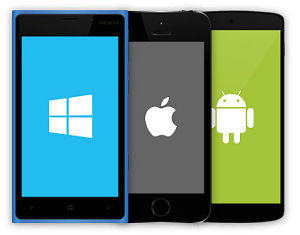
Our suite of mobile apps allow you to control your incoming business or personal calls instantly from any country in the world and then direct them to ring any phone, in any country in the world!
Our Apps deliver worldwide remote control of all your Flextel numbers, and access to our cost saving Callback service
myNumber is the simplest App designed to give control to each member of your team of one number only. They can route your incoming calls on Flextel individual numbers to most phones or mobiles. This is great for handing out numbers for individual use, whilst the account administrator still maintains control.
myAccount is our most powerful App, giving administrators near full control of the web-based Account Dashboard. You can route your incoming calls on all numbers in your account to most phones or mobiles. Top up your FlexCredit and activate our great services such as Call Recording. You can even use your Smartphone to make calls as your mobile office, while presenting a professional, permanent, high quality UK business number.
Callback is the App for you, if you just want to make national 084 and 087 calls and international calls at low Flextel rates from your mobile. This delivers high quality calls without the instability and complexity of VoIP based solutions. Callback also allows you to record calls, whilst present a professional business image when calling your clients e.g. using you own office numbers or Flextel Corporate numbers (03, 0845, 0844, 0870 and 0871) or local area numbers (01 and 02) .
or if you are on a mobile device tap the appropriate image below.


myNumber is the simplest App designed to give control to each member of your team of one number only. They can route your incoming calls on Flextel individual numbers to most phones or mobiles. This is great for handing out numbers for individual use, whilst the account administrator still maintains control.
Once the myNumber app is installed on your device. open it and the first page you see will ask for your Flextel number and the PIN for that Flextel number (NOT the Account Password).
Visit the App store for the latest information...
This powerful but simple App delivers high quality calls, without the instability and complexity of VoIP based solutions. Callback also allows you to record calls, whilst present a professional business image when calling your clients e.g. using your own office numbers or Flextel Corporate numbers (03, 0845, 0844, 0870 and 0871) or local area numbers (01 and 02) .
Once the Callback app is installed on your device open it and the first page you see will ask for a Flextel number and Password.
Next you will need to tell the App the phone number of the handset that you wish to call from, this can be your smartphone or any nearby handset.
To start a call, enter the number of the person you wish to call into the "Calling" box and tap the green phone...

 You can also access your smartphone contacts, if you wish.
Remember to be ready to answer the Callback call on your designated handset, especially if that isn't your Mobile.
Visit the App store for the latest information...
It includes all the functionality of the myNumber and Callback Apps, so you can even use your Smartphone to make and receive calls, so it can act as your mobile office, while presenting a professional, permanent, high quality UK business number, including your existing Business numbers.
Once the myAccount app is downloaded and installed on your device, open it and it will ask for your Account number and Password.
Visit the App store for the latest information...